Step 1- Reading the traces
In this step we will see how to read/import the traces of a recording contained in a SAF file (or in a plain text file). The required files are contained in the tutorial folder, inside the examples folder of the program.
-
Click the "New" button of the main menu to create a new project for Easy HVSR (the program asks for confirmation whether to save first);
-
In the screen that appears you can, if you wish, enter the general data of the project, which will be useful later only for the purpose of producing a complete report. These data do not affect the analysis in any way;

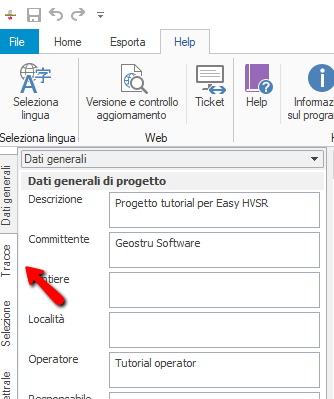
- We now enter the recording carried out in the field by clicking on "Traces"
- Click the button named "Read traces"

- A dialog window opens allowing the file to be loaded to be selected. Enter the "Step 1" folder of the tutorial (it is located inside the help folder of the program installation folder, typically something like "C:\Programmi\Geostru\EasyHVSR\Help\Tutorial\Step_1"), and choose "SESAME ASCII (*.SAF)" as filter
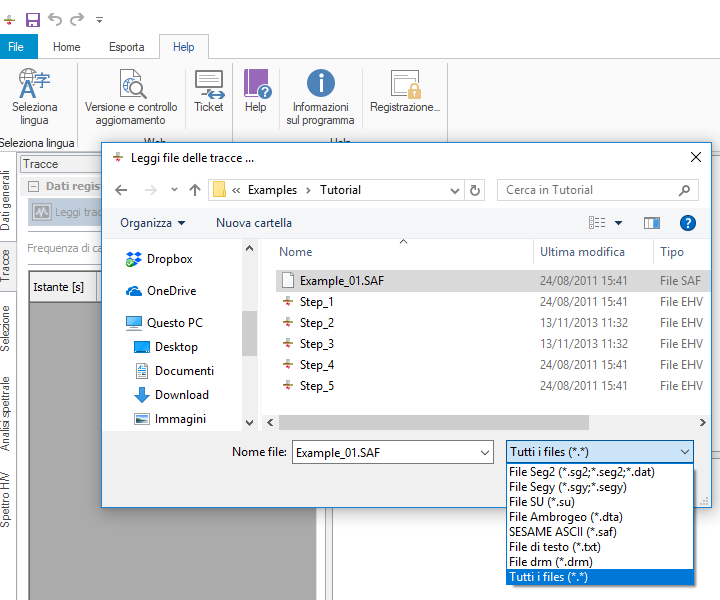
- Opening the file named "Example_01.SAF", the following window appears, which allows traces to be imported from this kind of file.

-
In the right-hand section of the window, the one highlighted in the image above, there is a preview of the content of the SAF file just selected. SAF files are essentially divided into two parts: a first one with general data and a second one with the recording data of the three channels of the tromograph. This window therefore allows the content of the file to be interpreted in the ways described below.
-
In the preview pane of the SAF file (again the one highlighted in the image above) click on the first row containing the recording data, that is at the point highlighted with a red arrow in the image below.

-
Write the value indicated at the point highlighted with the yellow arrow ("18") in the box relating to "First row index", indicated by the magenta arrow.
-
Again in the preview pane of the SAF file, click within the row containing the information about the sampling frequency (red arrow in the following image), which is typically reported as "SAMP_FREQ = xxx", highlighted with a red circle in the following image.

-
As done before, copy the value indicated by the yellow arrow ("2") into the field relating to "Sampling frequency row index", indicated by the magenta arrow.
-
At this point check that the channel import order is correct. The first section of the SAF file, as already mentioned, contains more general information, such as the order in which the recording channels are reported in the following part. This information is highlighted in the next image

-
It can be read that the channels are in the following order: Vertical, North-South and East-West. In accordance with the colour of the arrows in the image above, fill in the fields relating to "Channel reordering", that is: the "North-South" channel is in column number "2", and likewise for the other two. N.B.: when importing a SAF file, the order visible in the image above is the default one. Therefore, unless there is some difference in the SAF file, these values do not need to be changed.
-
Now press the button named "Extract": in the table on the right-hand side of the window we see a preview of the data that will be loaded into Easy HVSR.

- Now, pressing the "Ok" button, the data will be loaded into the program, giving an on-screen result similar to the following
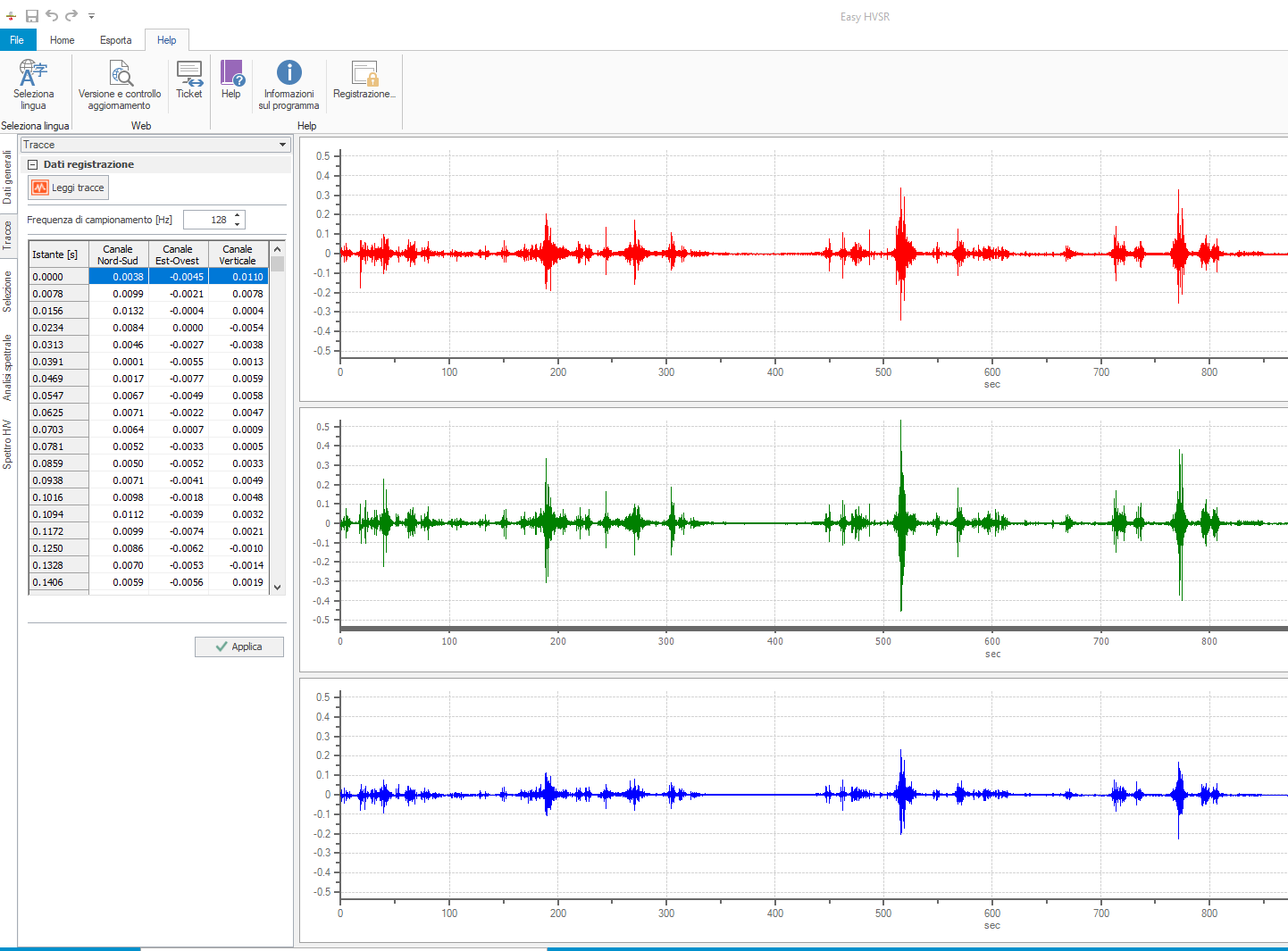
- We can now save the first step of the work by pressing first the "Apply" button right after the table, and then "Save" in the main menu.
©Geostru