Readings from the field sheet photo
For mechanical cone (CPT) tests the gauge readings are written by hand on the field sheet: LP (cone) and LL (cone + sleeve), usually every 20 cm. With Readings from photo Static Probing reads them from a photo or scan of the sheet with GeoStru's artificial intelligence service, shows them next to the image for checking and then adds them to the test; qc and fs are computed with the instrument constants, as if the readings had been typed in the grid.
Electric cones (CPTE, CPTU) already record qc, fs and u: those data are imported from the instrument file (Import readings), not from a photo.
Where to find it
- In the test Data entry window: Readings from photo button in the bar under the chart.
- In Import readings: Field sheet photo box.
- In the test card (Current test): From sheet photo... button.
An internet connection is needed: reading takes from a few seconds to a couple of minutes.
Instructions and choice of the photo
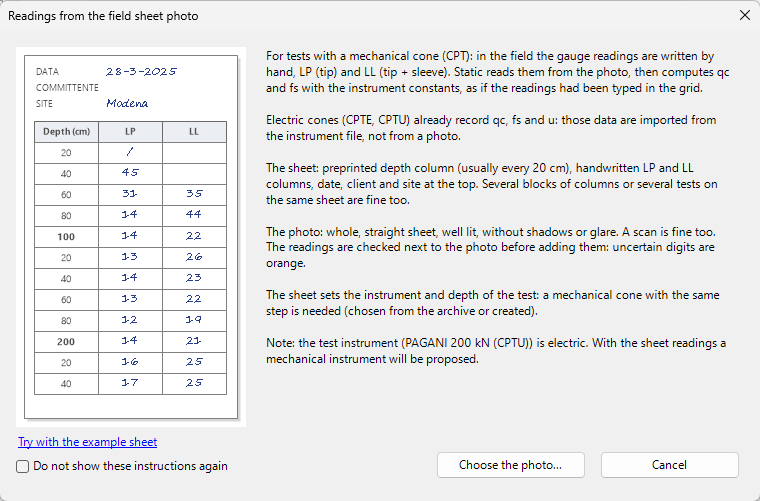
The first window explains what the sheet and the photo should look like:
- the sheet: preprinted depth column, handwritten LP and LL columns, date, client and site at the top. Several blocks of columns or several tests on the same sheet are fine too;
- the photo: whole, straight sheet, well lit, without shadows or glare; a scan is fine too.
If the test instrument is electric a warning appears: with the sheet readings a mechanical cone will be proposed.
Choose the photo... opens the examples folder the first time, then the last folder used. Try with the example sheet uses the sheet installed with the program (Import Examples\Field sheet photo).
Checking the readings
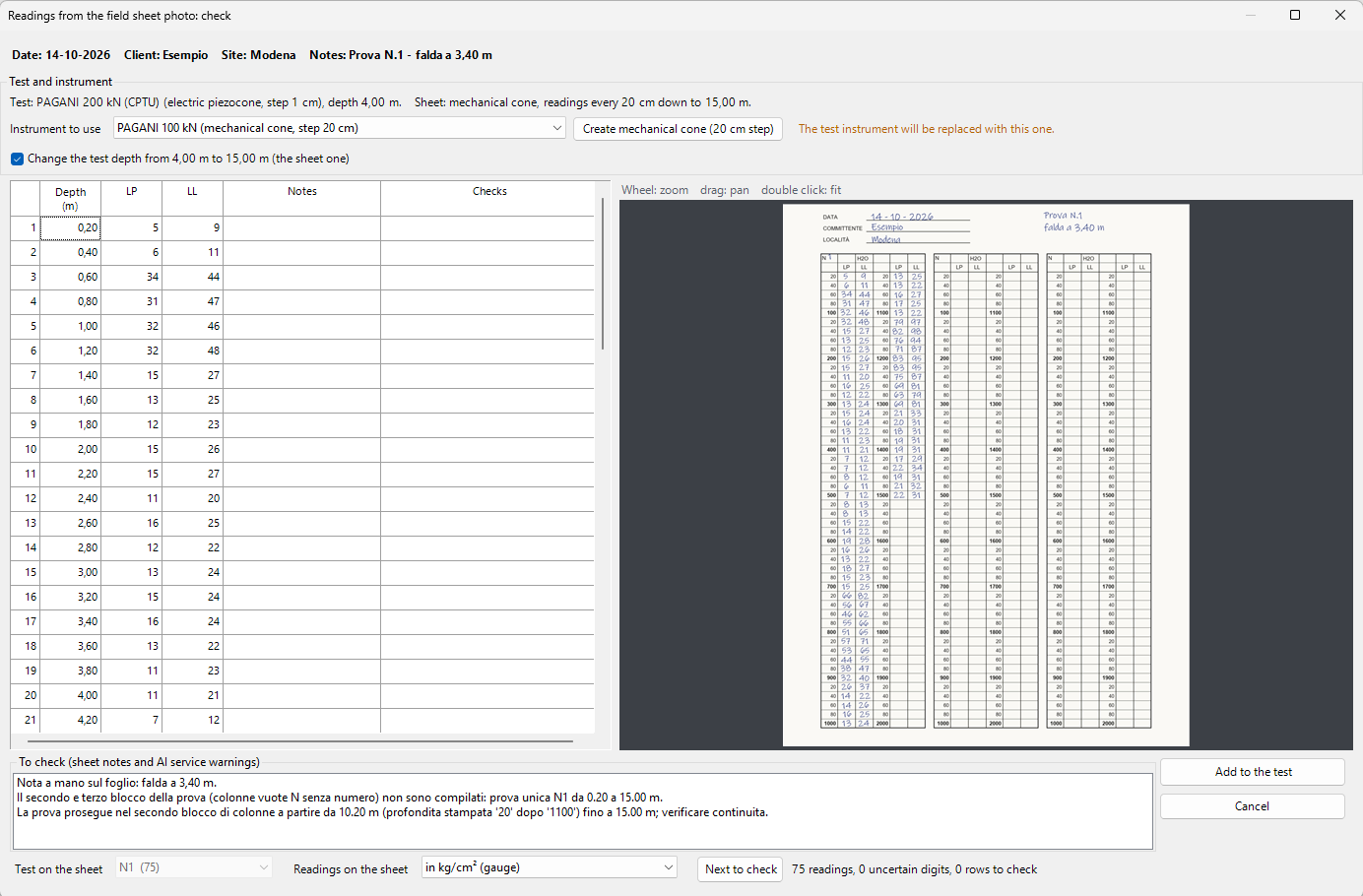
The Readings from the field sheet photo: check window shows:
- at the top Date, Client, Site and Notes read from the sheet;
- on the left the readings table (depth, LP, LL) with notes and checks for each row; uncertain digits are in orange;
- on the right the photo: wheel to zoom, drag to pan, double click to fit;
- at the bottom the To check box with the notes written on the sheet and the warnings of the AI service, the number of readings, uncertain digits and rows to check, and Next to check to go from one to the next.
Readings can be corrected in the table before adding them. The program also checks: depths not multiple of the step or repeated, missing readings, LL lower than LP, values very different from the neighbouring readings.
If the sheet holds several tests, choose the one to use in Test on the sheet; in Readings on the sheet state whether they are in kg/cm² (gauge) or already in the grid units.
Instrument and adding to the test
In the Test and instrument box:
- Instrument to use: a mechanical cone with the same step as the sheet is needed; choose it from the archive or create it with Create mechanical cone. Below, the program says whether the test instrument is fine or will be replaced;
- Change the test depth from ... to ... m (the sheet one): proposed when the sheet goes deeper than the test.
Add to the test writes the readings in the grid (if there were readings already it asks for confirmation) and updates the cone and sleeve resistance chart. Press Ok in data entry to save them in the test; from here go on as usual with stratigraphy, processing and report.
Note
Reading with artificial intelligence is a transcription aid: every reading must be checked against the photo before adding it to the test.
©Geostru