Seismic tomography
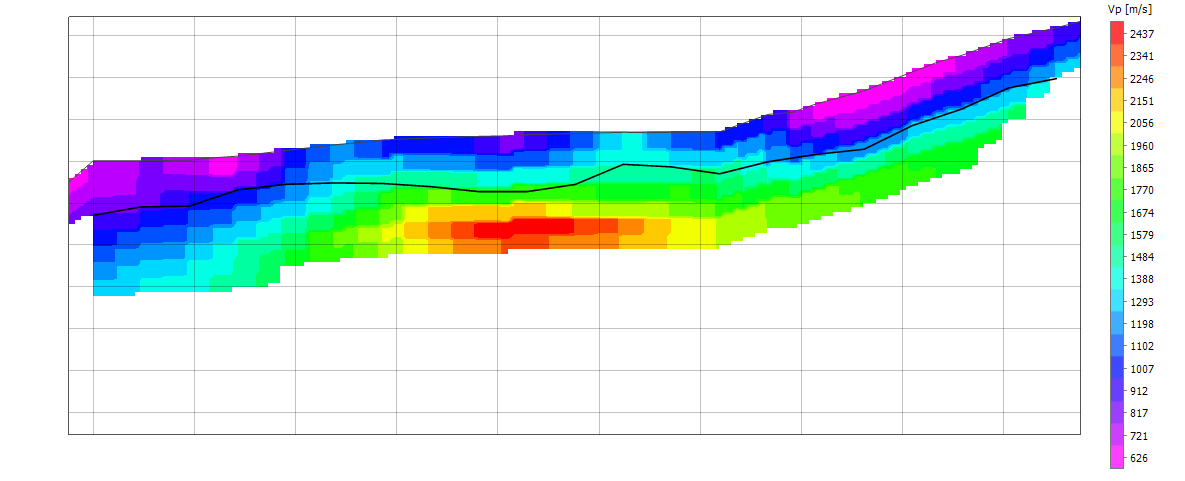
Seismic refraction tomography derives from the first arrivals a continuous velocity section, cell by cell, instead of a layered model. It shows lateral and gradual velocity changes that the G.R.M. method cannot represent: lenses, bedrock troughs, weathered or fractured zones.
It uses the same data as the refraction interpretation: spread geometry, geophone elevations and the first arrivals of all shots. Nothing new has to be entered.
Turning the tab on
The Seismic tomography tab is hidden by default, so users who only work with the refraction interpretation find nothing different.
- Turn it on or off with the Project > Process > Seismic tomography button. The choice is remembered the next time the program starts.
- When you open a project that already contains a computed tomography, the tab is turned on automatically.
The tab appears on the left, below Interpretation.
How much data is needed
Tomography works best with many shots: besides the end and centre shots, intermediate shots every few geophones. With fewer than 5 shots or 100 first arrivals the program warns that the section will be very smooth and shallow. The computation can still be run, but the result must be read with care.
Only active shots and geophones with a picked first arrival are used.
It is advisable to also shoot off-end shots, beyond the outermost geophones: without them, the bedrock depth at the edges of the section is constrained by few rays and can be much less accurate (as shown by the validation of the program).
Settings
The settings are in the panel on the left of the tab. The default values suit most cases: you can press Compute straight away.
Grid
| Setting | Meaning |
|---|---|
| Cell size [m] | Size of the cells. With 0 it is a quarter of the geophone spacing. |
| Depth [m] | Depth of the grid below the surface. With 0 it is 35% of the spread length. |
The grid follows the topography: each column starts at the ground elevation.
Initial model
The inversion starts from a model and corrects it step by step.
| Choice | Meaning |
|---|---|
| Automatic (from data) | Velocity increasing with depth, estimated from the apparent velocities of the first arrivals. This is the recommended choice. |
| Gradient | Velocity increasing linearly from V at surface to V at bottom. |
| From interpretation | Starts from the G.R.M. layered model. The Interpretation tab, which computes the refractors, must be opened first. |
Inversion
| Setting | Default | Meaning |
|---|---|---|
| Smoothing | 20 | Weight of the smooth-section constraint. High values give a more regular section, low values follow the data (and their noise) more closely. |
| Maximum iterations | 15 | Maximum number of model corrections. |
| Picking error [ms] | 1.0 | Estimated accuracy of the first arrivals. The computation stops when the residuals reach this level: there is no point in fitting the data better than their error. |
| Minimum V / Maximum V [m/s] | 100 / 6000 | Limits on the velocities allowed in the section. |
Computation
Press Compute. The computation runs in the background: below the buttons you see the current iteration and the misfit (RMS) between measured and computed times, while the program remains usable. Cancel stops the computation.
At the end the panel shows the time taken, the iterations and the initial and final RMS. A good result has a final RMS close to the picking error.
If you change the first arrivals or the geometry after the computation, the panel warns that the result no longer matches the data: press Compute again.
Display
| Option | Effect |
|---|---|
| Hide cells without rays | Leaves blank the zones crossed by no ray. There the velocity is not constrained by the data and only shows the initial model. |
| Rays | Draws the path of the seismic rays. |
| Interpretation interfaces | Overlays the G.R.M. refractors, to compare the two methods. |
| Geophones and sources | Shows the positions of geophones and shots. |
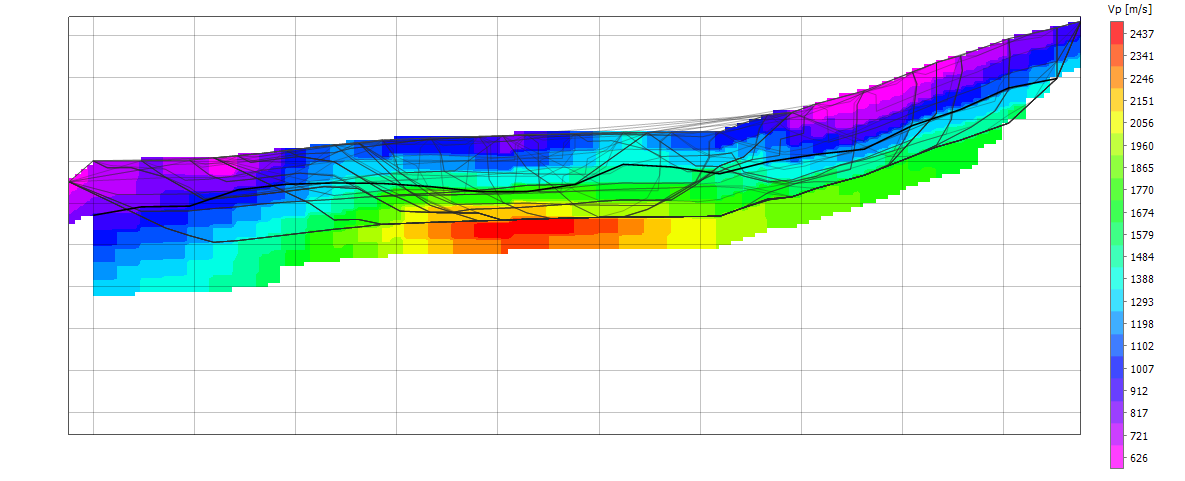
The rays show where the section is reliable: where they are dense and cross from different directions the velocity is well defined; at the edges and at depth, where rays are few, it must be read with caution.
Velocity classes
The velocity section is not a stratigraphy: it tells how fast the waves travel, not what the material is. To read it as zones you can colour it by velocity classes, each with a range and a description.
- Tick Velocity classes in the Display group.
- Classes... opens the list of classes: for each one you set the upper velocity limit, the description and the colour (click the colour to change it). The last class has no upper limit. Add and Remove change the number of classes, Defaults restores the initial classes.
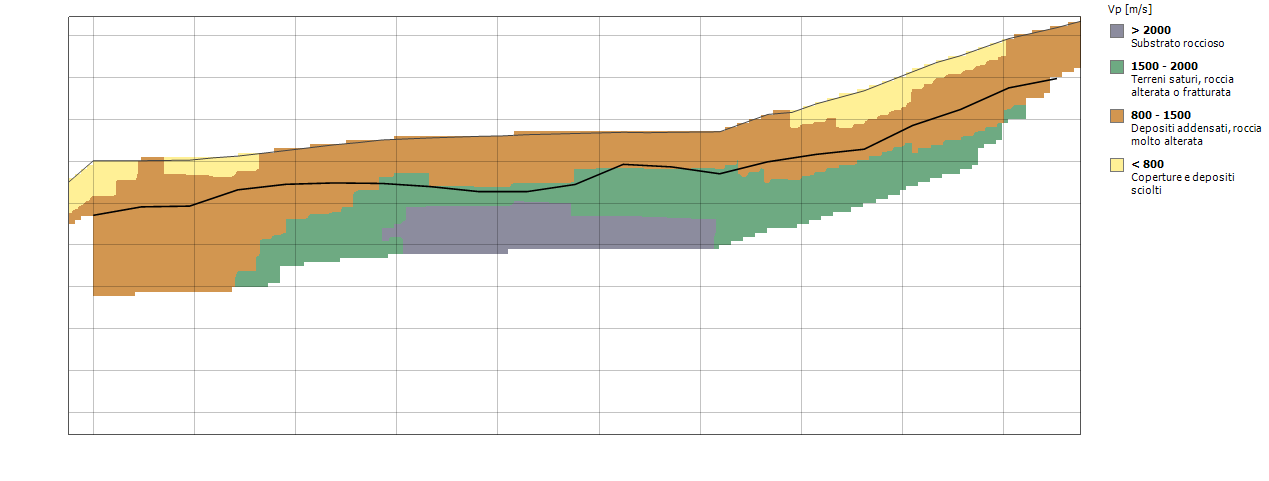
The default classes are indicative, for P waves:
| Vp [m/s] | Description |
|---|---|
| up to 800 | Cover and loose deposits |
| 800 - 1500 | Dense deposits, highly weathered rock |
| 1500 - 2000 | Saturated soils, weathered or fractured rock |
| above 2000 | Bedrock |
Calibrate on site
The classes must be adapted with boreholes and local geology. Two cases to keep in mind: water raises Vp above about 1500 m/s even in loose soils, so below the water table a soil can fall into the weathered-rock class; and tomography smooths contrasts, so a sharp boundary between two layers appears as a transition band. With S waves the limits must be changed.
The classes are saved in the project. When they are on, the image, the DXF (one colour per class, with the legend of the descriptions) and the report (with the list of classes) use the section by classes.
Export
| Command | Result |
|---|---|
| Image... | Saves the section as an image. With this tab open, the ribbon commands that copy and export the image also work on the section. |
| XYZ grid... | Text file with one row per cell: x, elevation, depth, velocity and ray coverage. It opens in Surfer or in a spreadsheet. |
| DXF... | CAD drawing of the section with coloured cells, with surface, interfaces and legend on separate layers. |
Saving and report
The tomography (settings and result) is saved in the project .rft file.
When the project is reopened the section is immediately available, without
repeating the computation. The file also opens in earlier versions of Easy
Refract, which ignore the tomography.
When the tab is on and the result is up to date, the report contains the Seismic tomography chapter: description of the method, settings, quality of the fit and image of the section.
Example
The examples folder contains
Examples\Tomografia\Tomografia sismica - Esempio 8 tiri.rft: a real survey
with 8 shots and 21 geophones, with topography, and the tomography already
computed. The RMS drops from about 6 ms for the initial model to about 1 ms.
How the computation works
- Travel times: computed with the Fast Marching method, which propagates the wavefront from the source cell by cell, on a grid that follows the topography.
- Inversion: the model is corrected by least squares (Gauss-Newton, solved with LSQR), with a constraint that keeps the section smooth. At each iteration the smoothing weight is gradually reduced, down to a quarter of its initial value.
- Stop: the computation stops when the residuals reach the picking error (normalized chi-square equal to 1) or after the maximum number of iterations.
Tomography and G.R.M.
The two methods complement each other. The G.R.M. gives depths and velocities of the refractors, suited to a layered model; tomography shows gradual and lateral changes, but tends to smooth sharp contrasts. Comparing the section with the interpretation interfaces helps to read both results.
© Geostru